
Statements are available via the Payout reconciliation report in Stripe.
The Payout reconciliation report helps you match the payouts you receive in your bank account with the batches of payments and other transactions that they relate to.
The payout reconciliation report is only available for users with automatic payouts enabled, and is optimized for users who prefer to reconcile the transactions included in each payout as a settlement batch.
Downloading data
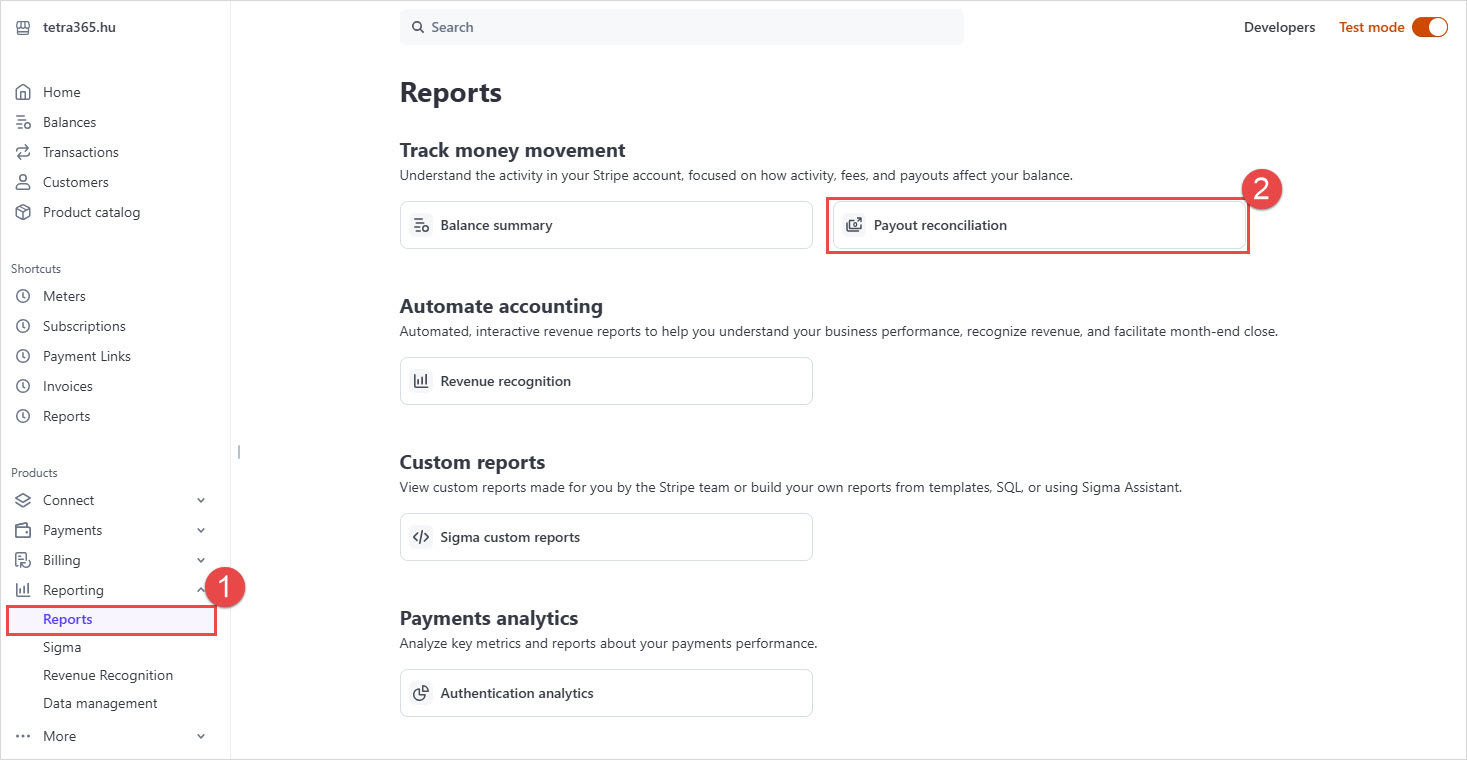
You can access the Payout reconciliation report in Stripe on the following link: https://dashboard.stripe.com/reports/reconciliation
or from the Stripe menu Reporting > Reports:
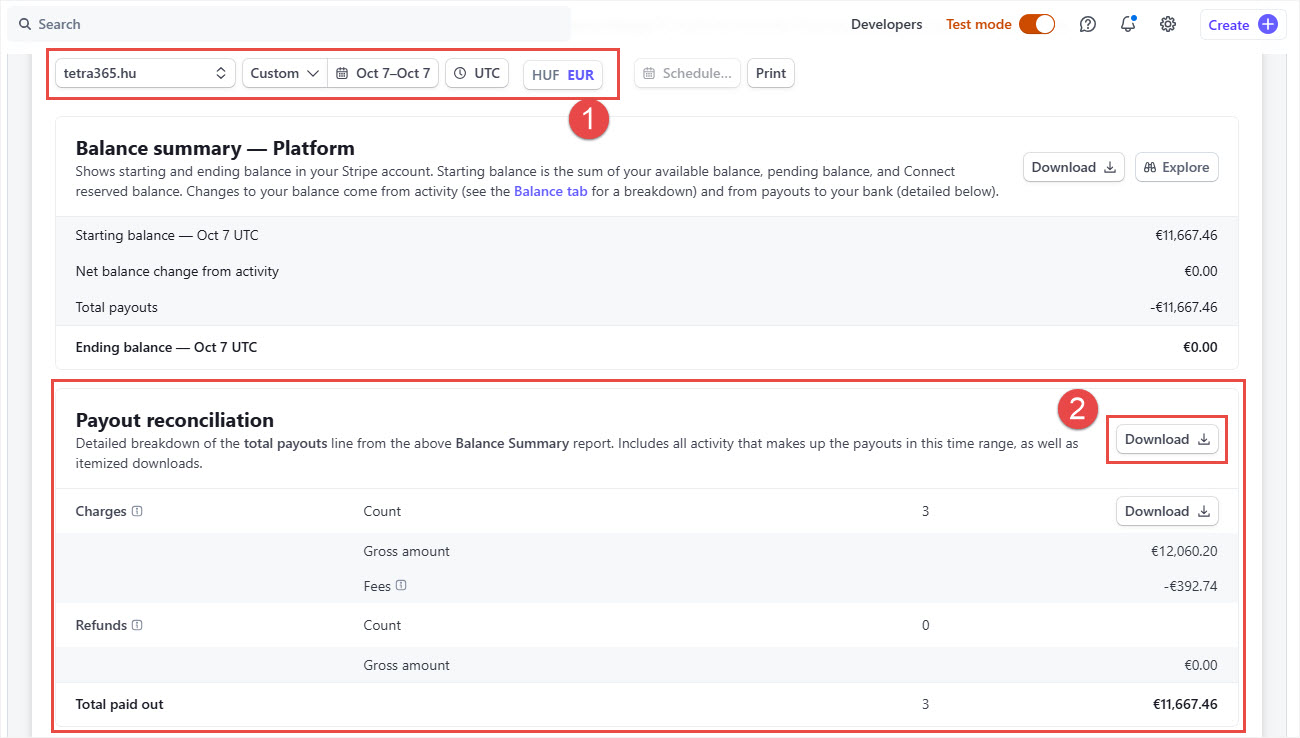
Set the filters on the top of the page (be aware that payout takes 7 days in Stripe even its in test mode, when Stripe is in test mode then the payout date shown false), then use the Download button in the upper right corner of the Payout reconciliation section.
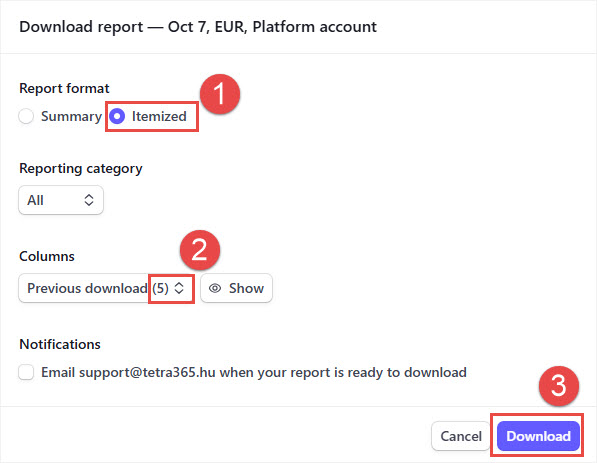
Before downloading you have to set the Report format to Itemized.
Click on the Show button and select the necessary 5 columns as follows:
- Created (UTC)
- Gross
- Fee
- Payment intent ID
- Invoice ID
then click on Download.
The downloaded result will be a .CSV file that can be imported to Business Central via the Payment Reconciliation Journal.
We are proud to work with them


 2089 Telki, Öreghegyi út 31/A Hungary
 +36 30 502 0648