
There are two ways to install the PDF Viewer extension for Dynamics Business Central:
1. Installation from Business Central
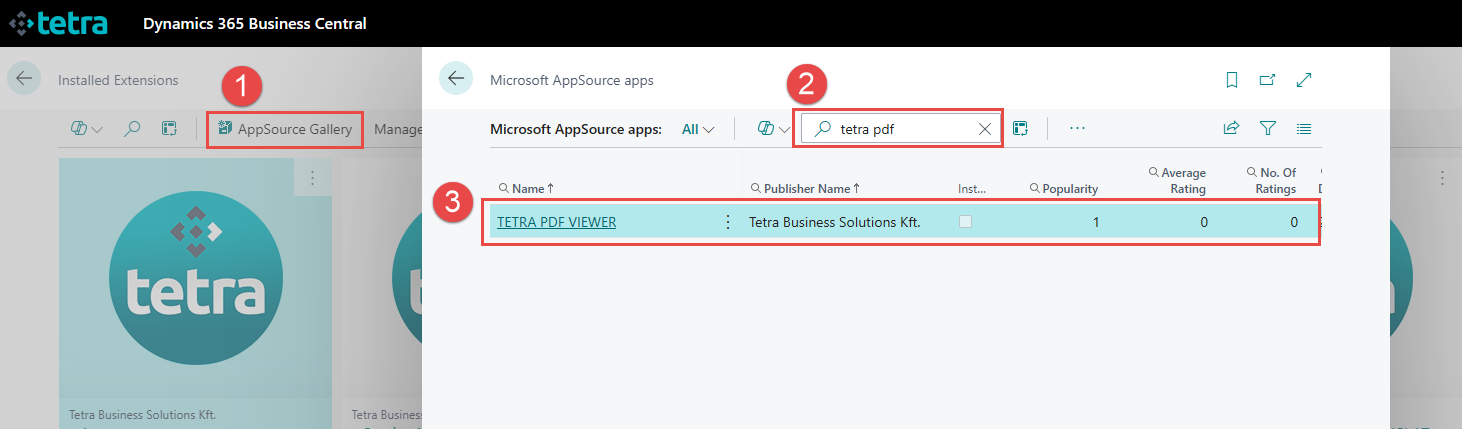
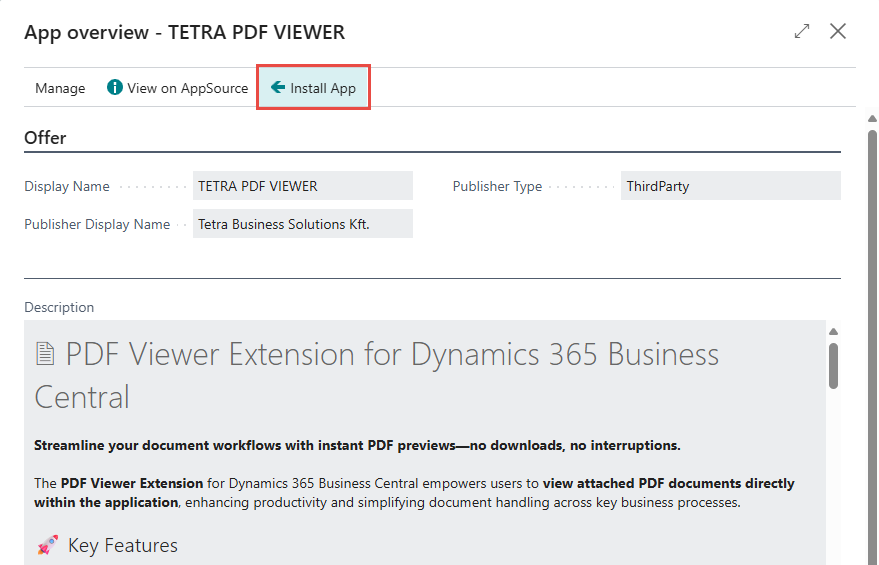
In Business Central, choose the Search icon 🔎 in the top-right corner, enter Extension Management, and then choose the AppSource Gallery action. In the marketplace, search for TETRA PDF Viewer and then choose TETRA PDF Viewer from Tetra Business Solutions. Click on the app name and on the following page select the Install App action. Follow the wizard instructions to complete the installation.
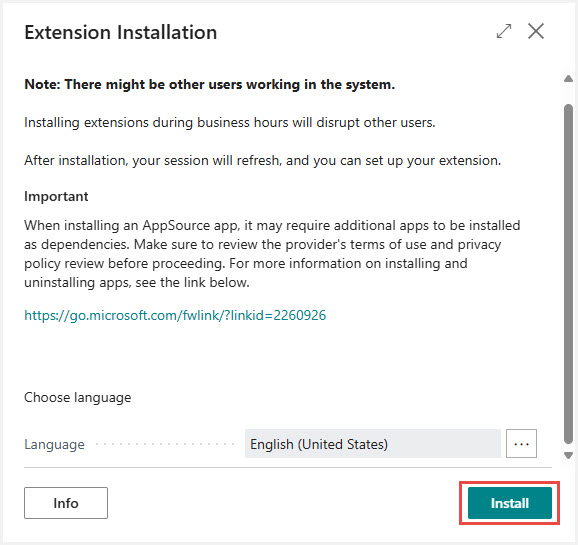
Select the language for installation and click on the Install button.
2. Installation from Microsoft AppSource
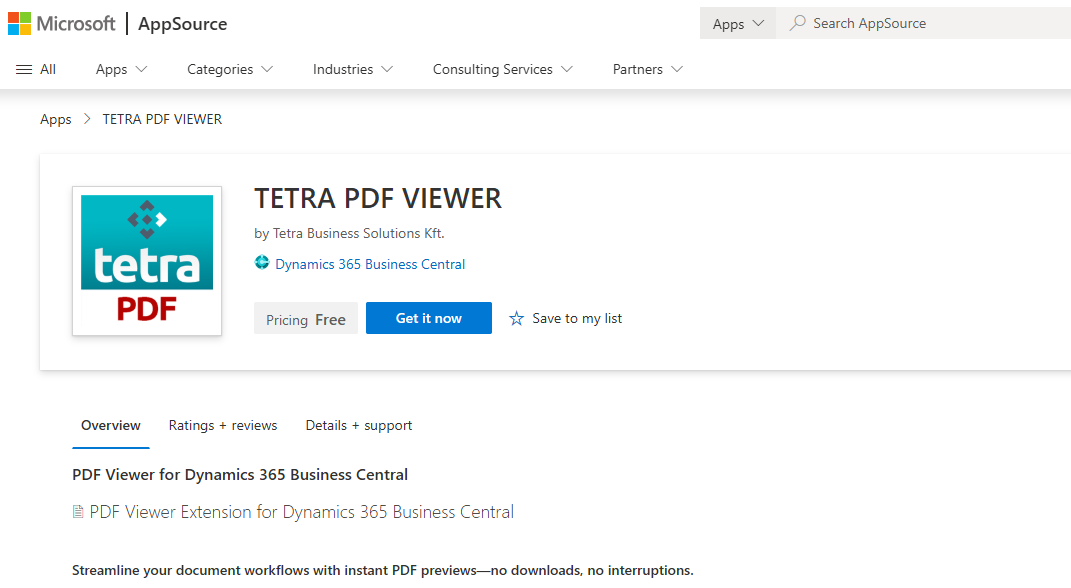
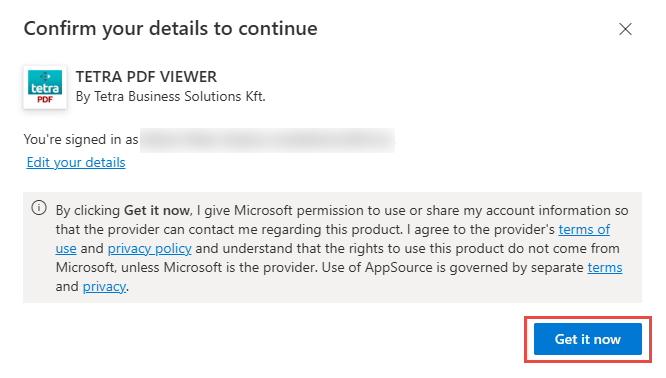
Visit the Microsoft AppSource extension marketplace and search for TETRA PDF Viewer, then choose Get i now.
You can directly access the app on the following URL: PDF Viewer for Business Central by TETRA
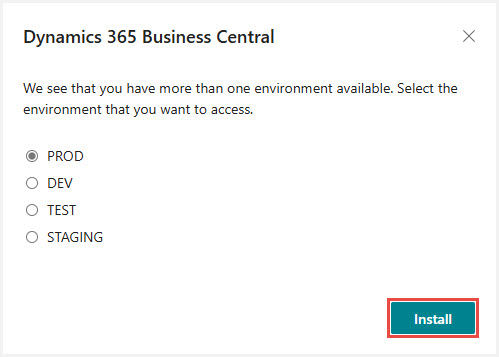
You will be forwarded to a page where you must log in with your Business Central user credentials and select an environment to install the app to. Follow the wizard instructions to complete the installation.
Confirmation message will appear, click on the Get it now button.
Select the environment where you want the TETRA PDF Viewer app installed and click Install.
Select the language for installation and click on the Install button.
Iratkozzon fel hírlevelünkre
Büszkék vagyunk, hogy velük dolgozhatunk


 2089 Telki, Öreghegyi út 31/A
 +36 30 502 0648