
Automatic charging allows you to collect payments using the customer's saved payment method after releasing a sales document. This feature is available with the Pro plan.
Prerequisites
- The customer must already exist in Stripe and have a Stripe Customer ID linked in Business Central.
- On the payment terms, set Stripe Payment Action to Create Payment Plan.
- To use automatic charging, enable Stripe Automatic Charging on the payment terms and configure automatic payment initiation on the Stripe Setup page. For setup instructions, see Assisted Application Setup.
How it works
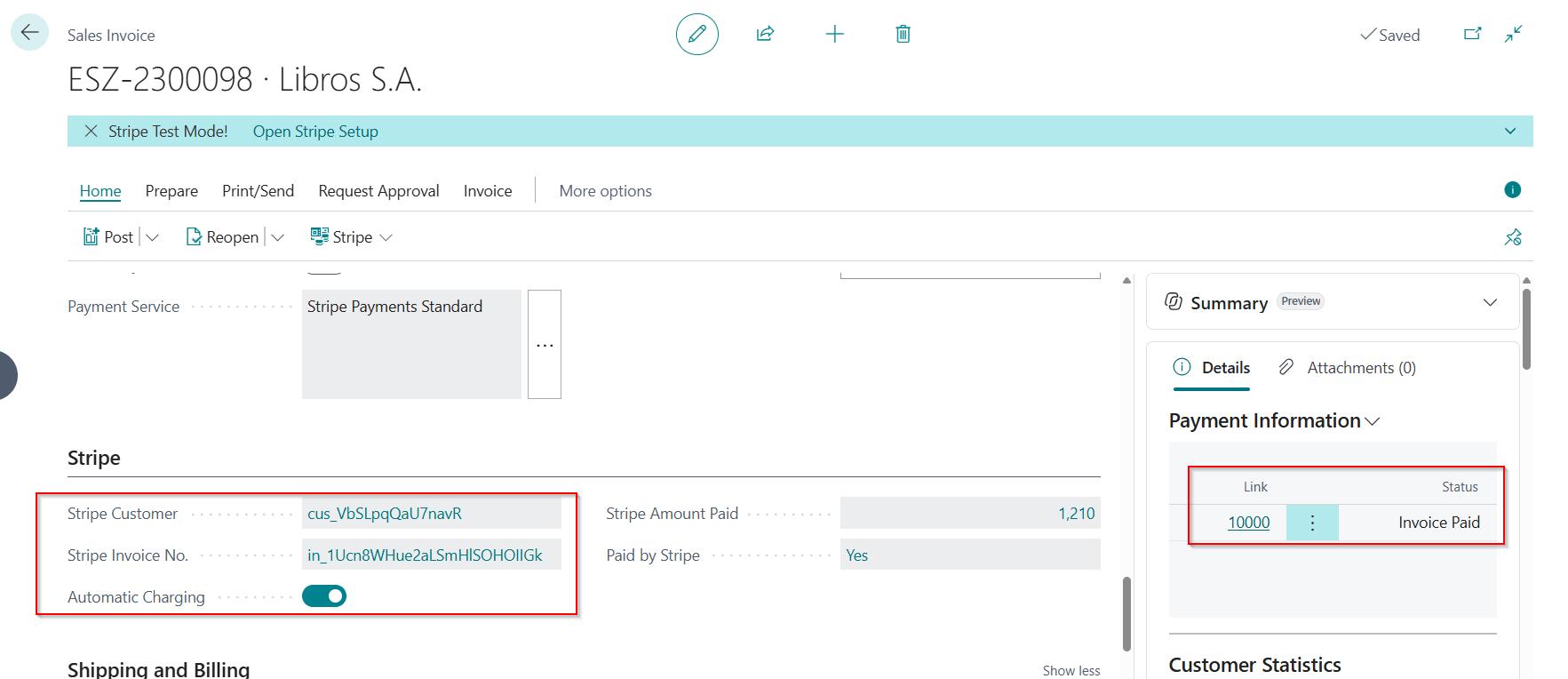
Create the sales document, select the payment terms configured for Create Payment Plan, and check that the Stripe Customer field is populated. The Automatic Charging setting is copied from the payment terms to the sales document.
Charge the customer's saved card
If the customer has a default payment method in Stripe, make sure Automatic Charging is enabled on the sales document and choose Release. The connector creates a Stripe invoice and fills in Stripe Invoice No.. If automatic payment initiation is enabled in Stripe Setup, the connector attempts the charge. After a successful payment, the Payment Information FactBox shows Invoice Paid.
Email a Stripe invoice payment link
If the customer has no default payment method in Stripe, turn off Automatic Charging on the sales document and choose Release. The connector creates a Stripe invoice and emails the customer a Stripe invoice payment link. Once the email is sent, the Payment Information FactBox shows Invoice Sent. The customer can pay the invoice online and save their payment method for future payments. See No default payment method for the steps and screenshots.
Link expiration. The separate Stripe Payment Link feature has a 24-hour expiration period. Stripe invoice payment links follow the expiration rules for Stripe-hosted invoices.
View the Stripe invoice
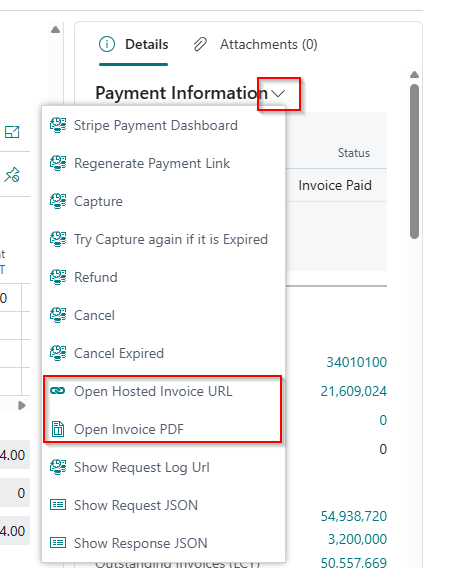
After the Stripe invoice has been created, you can open its hosted page or PDF directly from Business Central. Open the action menu in the Payment Information FactBox and choose one of the following actions.
- Open Hosted Invoice URL opens the Stripe-hosted invoice page, where you can view the invoice details and check its current payment status. If the customer received a Stripe invoice payment link by email, the Make Payment button in that email opens the same page.
- Open Invoice PDF opens the Stripe invoice PDF. The email with the Stripe invoice payment link includes the Business Central draft invoice as a PDF attachment.
The hosted invoice page reflects the current payment status. After successful payment, it displays a payment confirmation and provides options to download the invoice and receipt.
Important information about VAT and invoicing
The Stripe invoice is used for payment collection. The total amount payable in Stripe matches the total in Business Central. The VAT details shown on the Stripe invoice may differ from the VAT codes used in Business Central. Use only the final invoice issued in Business Central for accounting and VAT reporting.
Good to know
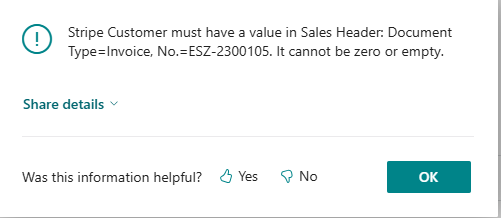
A Stripe customer is required. If the Stripe Customer field on the sales invoice is empty, Business Central displays the error below.
If the customer already exists in Stripe, select the existing Stripe customer. If you need to create a Stripe customer, you can do so from either a sales document or the Customer Card in Business Central.
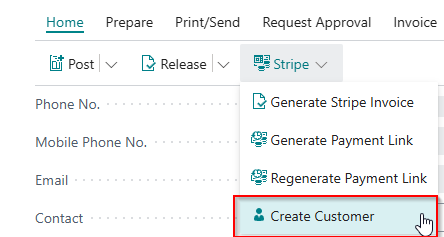
From a sales document. Open a sales quote, order, or invoice and choose Stripe → Create Customer.
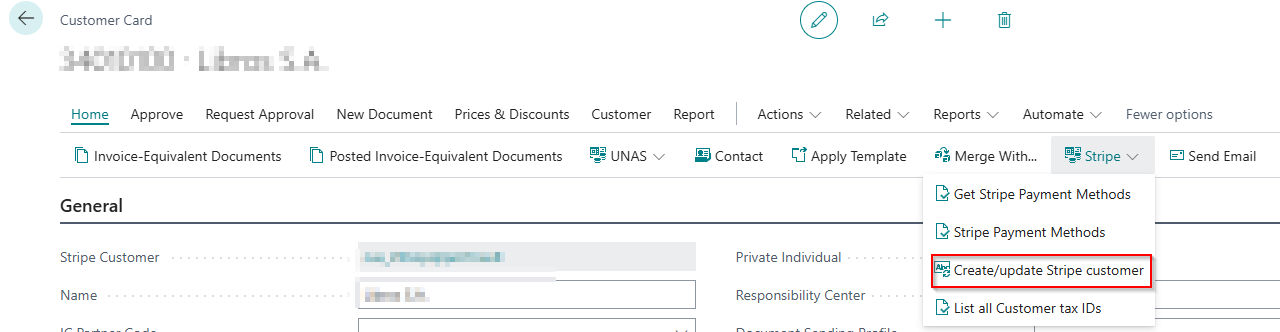
From the Customer Card. Open the customer's card in Business Central and use the Stripe customer creation action shown below. You can do this before creating a sales document.
No default payment method
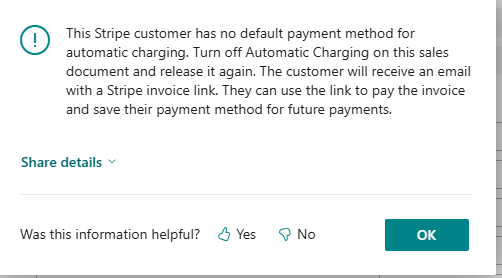
If Automatic Charging is enabled and the linked Stripe customer has no default payment method, Business Central displays the message below when you try to release the sales document.
-
Turn off Automatic Charging on the sales document.

-
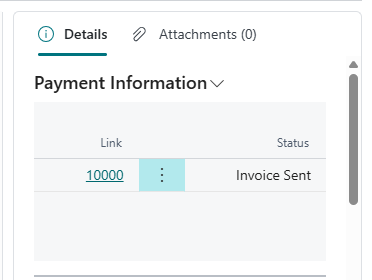
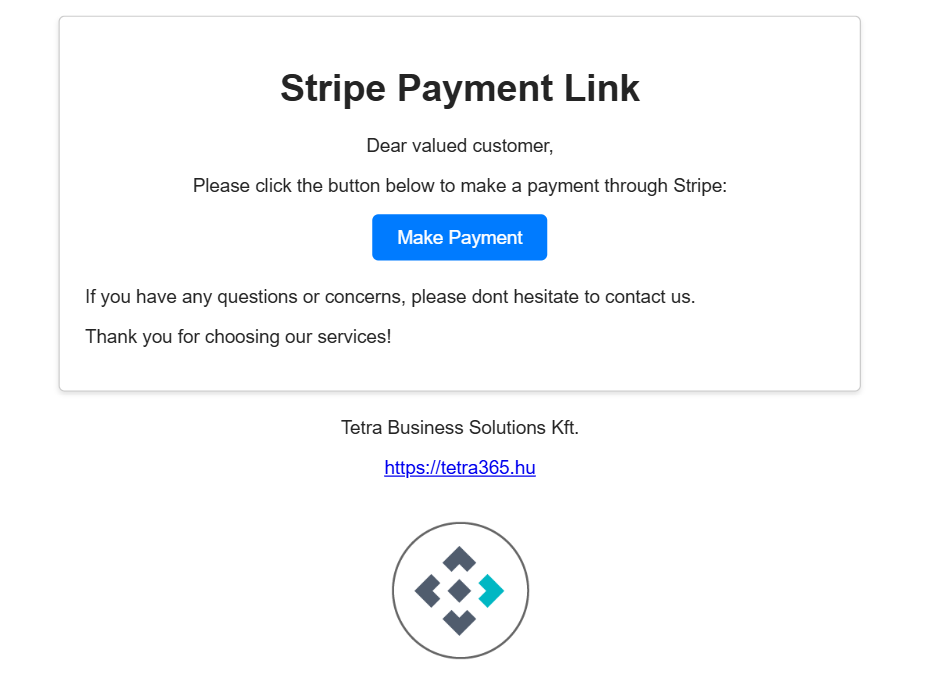
Release the sales document again. The connector creates the Stripe invoice and emails the customer a Stripe invoice payment link. The email includes the Business Central draft invoice as a PDF attachment. The Payment Information FactBox shows Invoice Sent.
-
The customer can select Make Payment in the email to open the Stripe-hosted invoice, pay it, and save their payment method for future payments.
Lépjen velünk kapcsolatba!
Kérdése van megoldásainkkal kapcsolatban? Írjon nekünk, és beszéljük át, hogyan tudunk segíteni!
Büszkék vagyunk, hogy velük dolgozhatunk


 2089 Telki, Öreghegyi út 31/A
 +36 30 502 0648