
There are two assisted setup wizards:
1. Assisted Connection Setup
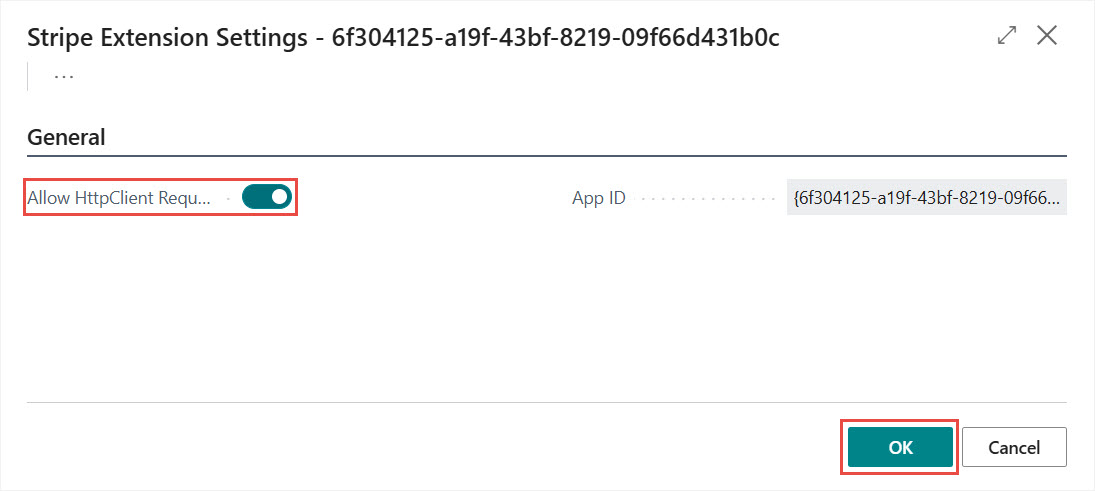
On the first page there will be a notification on the top of the page. The message is about activating the HTTP Client Request option for the extension. Click on the Activate link and enable the option, then click OK.
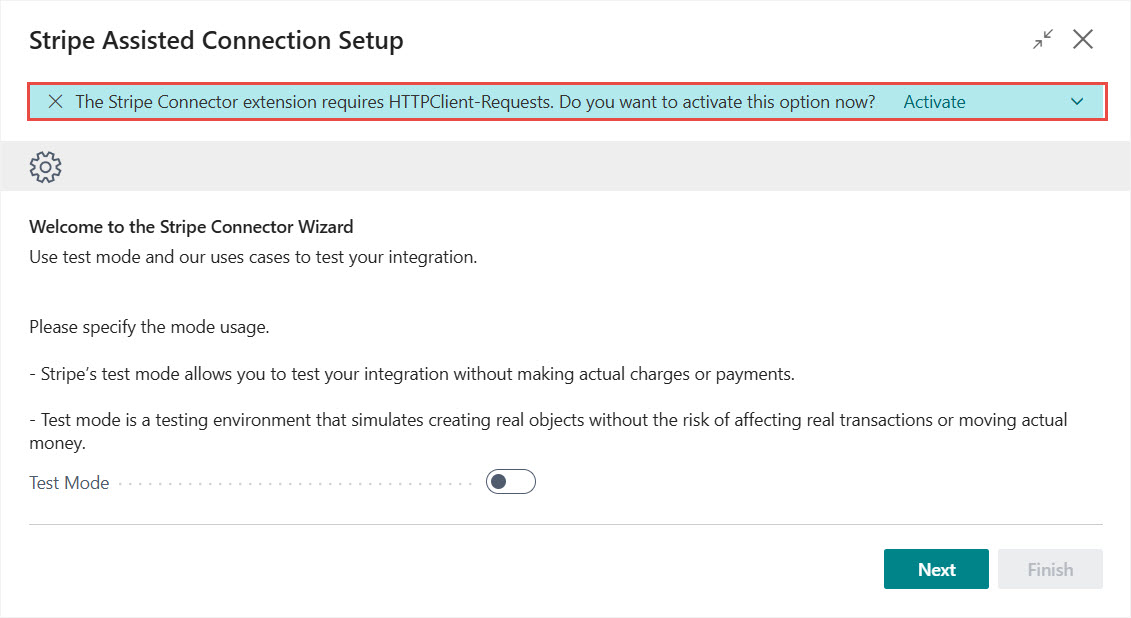
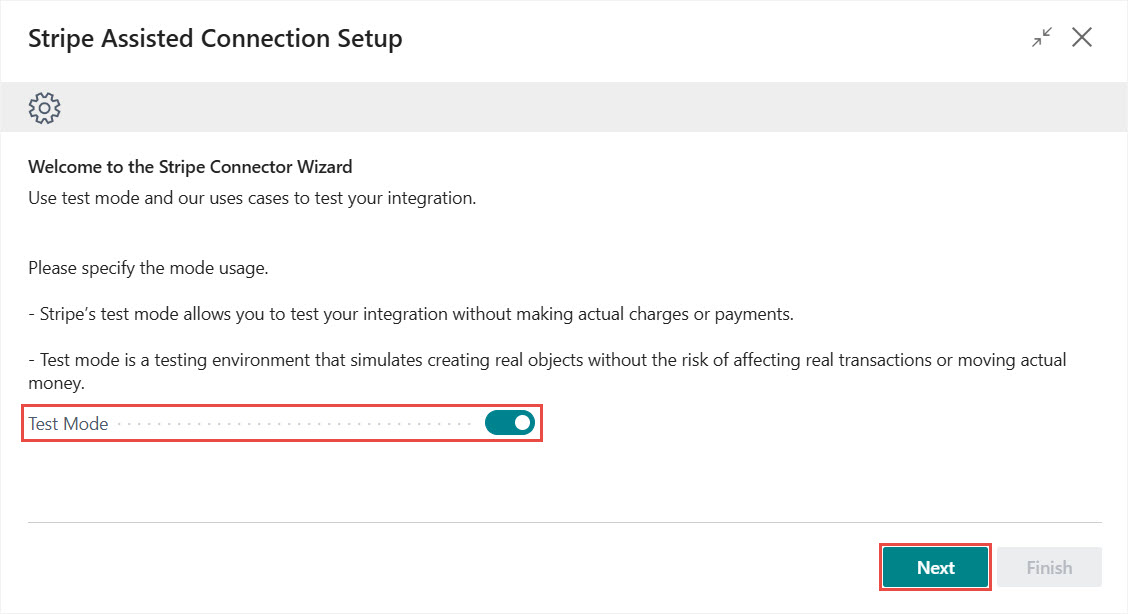
On this page you can set if the TETRA Stripe Connector is in LIVE or TEST mode. Test mode allows you test the integration with using full Dynamics 365 Business Central functionalities without making any real charges or payments in Stripe. In test mode you can see all transactions and payment related information in Stripe. (Test mode can be deactivated on the Stripe Setup page when you are tested the solution). Choose the mode and click on Next.
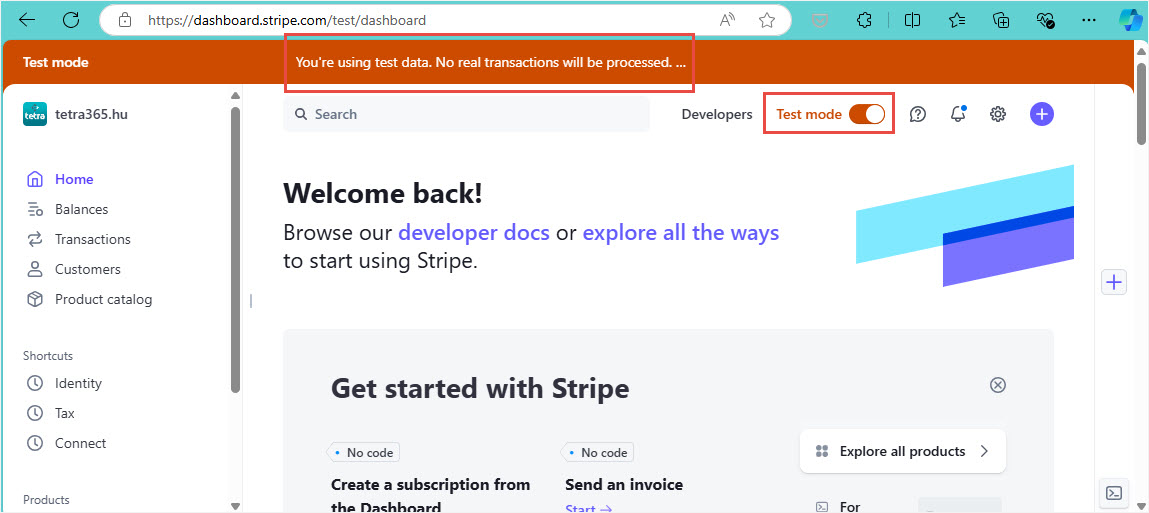
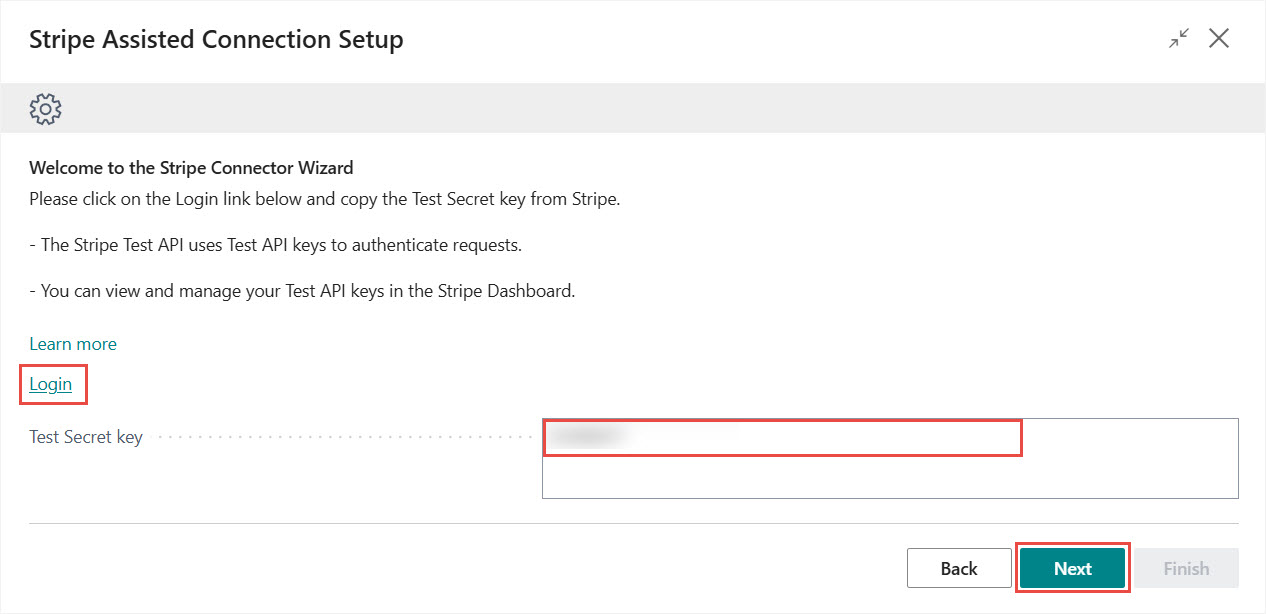
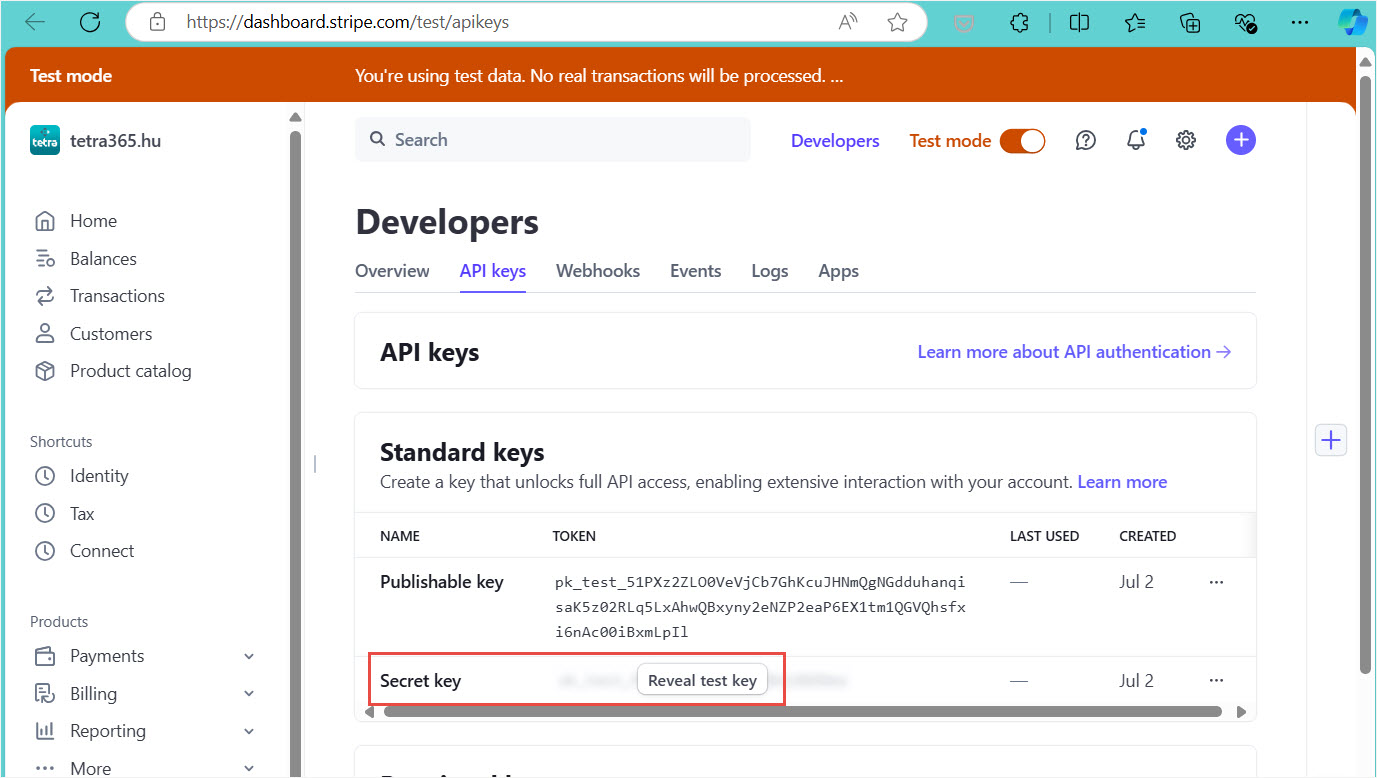
On the next page you can set the Test Secret Key that is used for Stripe API calls. Click on the Logink link. A new browser tab will open where you can reveal and copy the test key. Paste the Test Secret Key and click on Next.
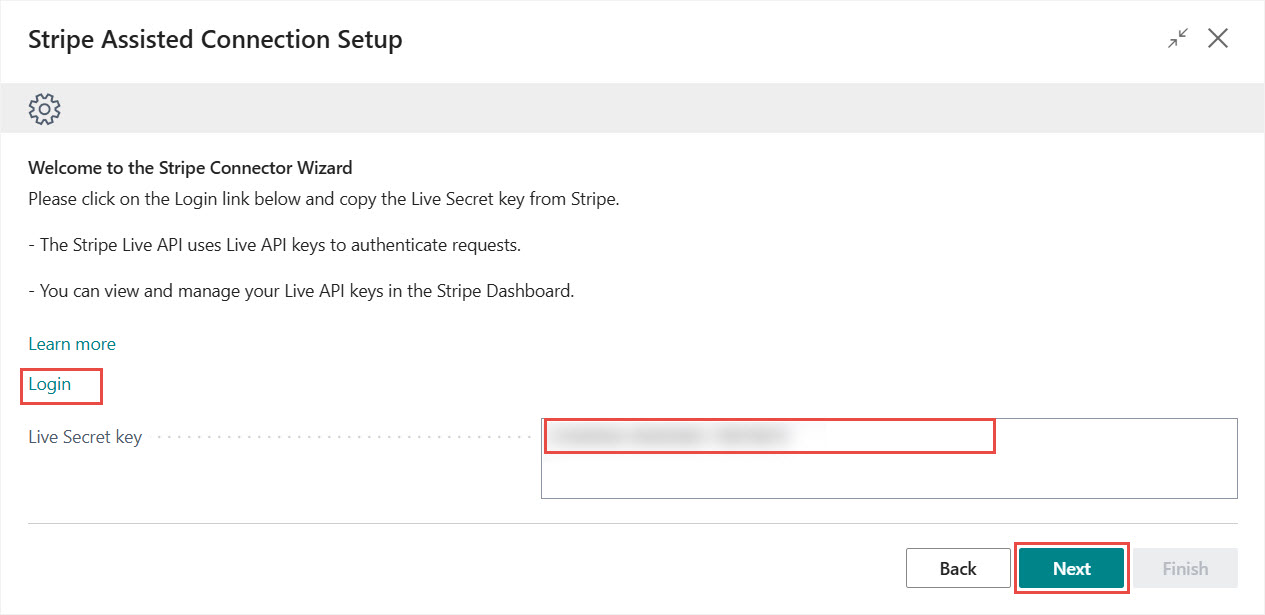
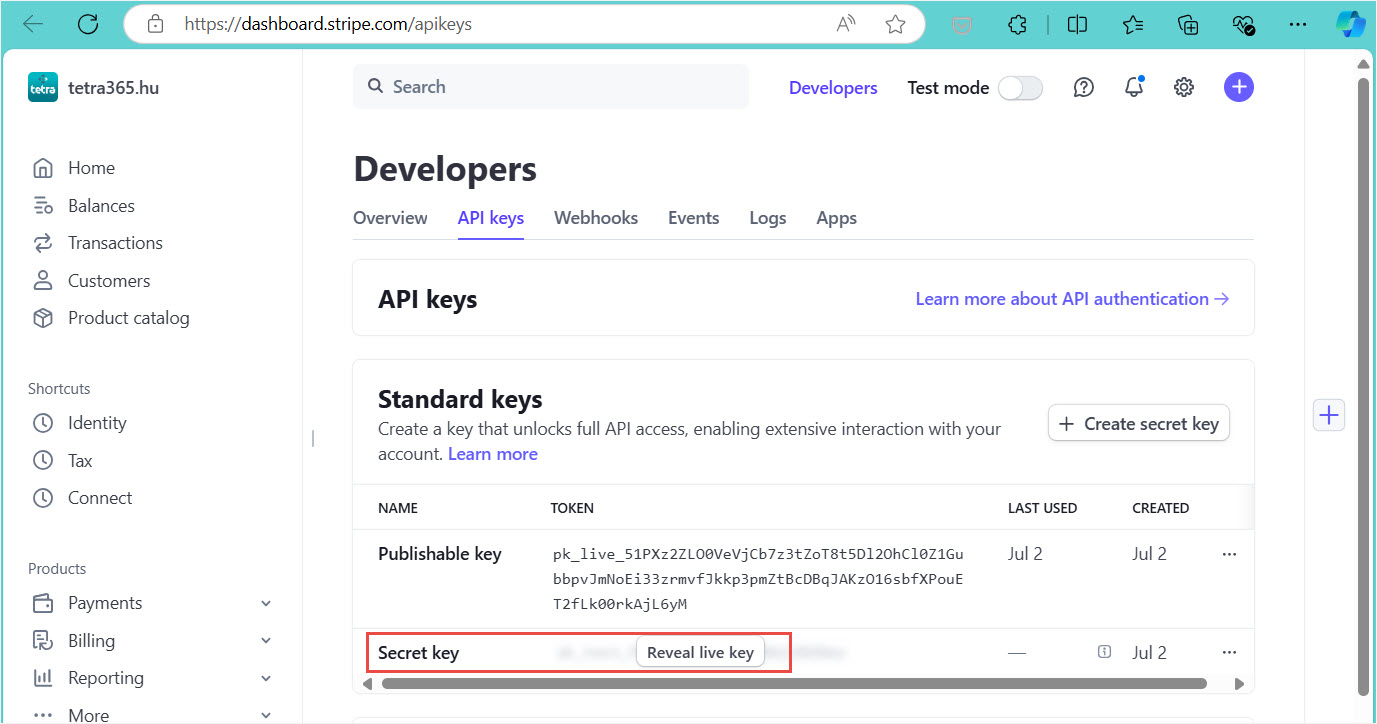
On the next page you can set the Live Secret Key that is used for Stripe API calls. Click on the Logink link. A new browser tab will open where you can reveal and copy the live key. Paste the Live Secret Key and click on Next.
On the last page of the wizard click on the Test Connection link, check the if the connection is working and click on Finish to save the setup.
Iratkozzon fel hírlevelünkre
Büszkék vagyunk, hogy velük dolgozhatunk


 2089 Telki, Öreghegyi út 31/A
 +36 30 502 0648