
In Business Central, choose the Search icon 🔎 in the top-right corner, enter Stripe Setup, and then choose the related link.

Set up the General FastTab
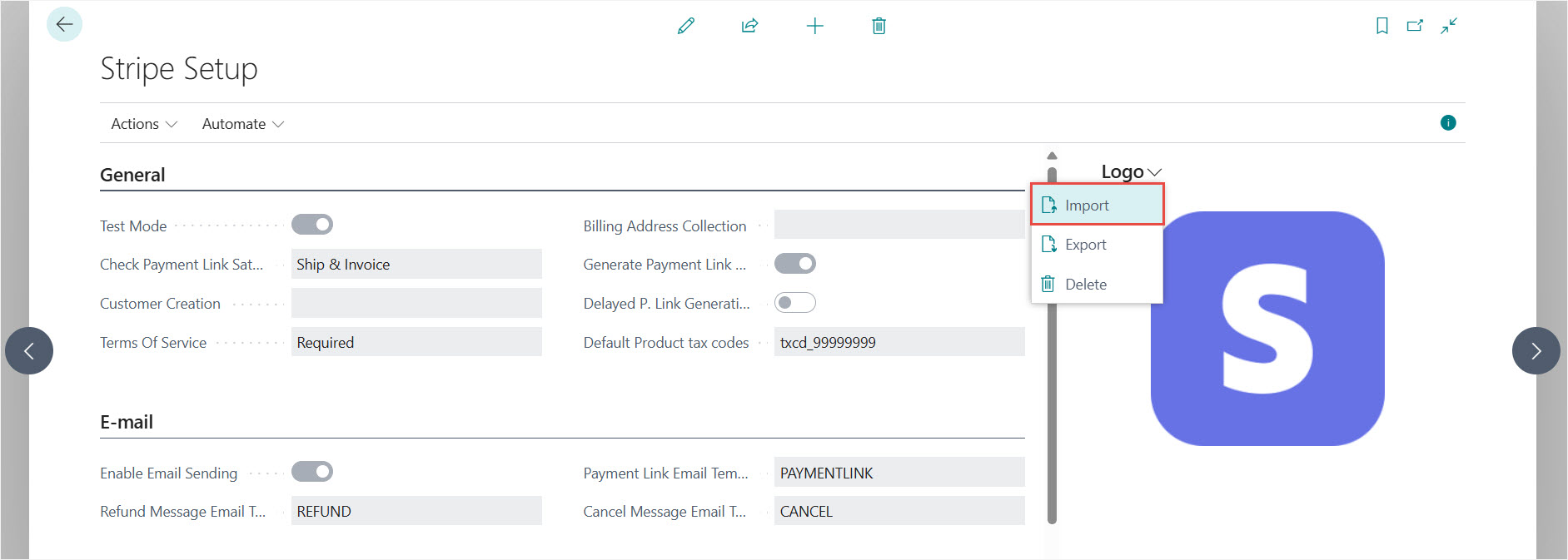
The General FastTab contains the basic setup defaults. To display all fields, select Show More. You can read a short description in the tooltip by hoovering the pointer over the field name.
- Test Mode: Specifies whether Stripe payments are used in test mode. In test mode, no real transactions are made.
- Check Payment Link Status: Specifies when to check if the payment link status is paid. Possible values are: Empty: no check happens. Ship: when a Sales Order is posted with the Ship option. Invoice: when a Sales Order or Sales Invoice is posted with the Invoice option. Ship and Invoice: when a Sales Order or Sales Invoice is posted with the Ship and Invoice option.
- Customer Creation: Specifies when a customer should be created in Stripe. If Required: The Checkout Session will only create a Customer if it is required for Session confirmation. Currently, only subscription mode Sessions and payment mode Sessions with post-purchase invoices enabled require a Customer. Always: The Checkout Session will always create a Customer when a Session confirmation is attempted.
- Terms Of Service: Specifies if accepting the terms of service block is shown on the Stripe Payment Link. Custom Terms Of Service URL can be added on the Add public details for customer page in Stripe (https://dashboard.stripe.com/settings/update/public/support-details)
- Billing Address Collection: Specifies that the customer is required to fill in the customer address details when making a Stripe payment.
- Generate Payment Link After Release: Specifies if the Payment Link is generated automatically when the document is released.
- Delayed P. Link Generation: Specifies if the Payment Link is generated with some delay when the Generate Payment Link After Release setting is active. Its useful when third party applications like Avatax calculates the amount when the release of the document happened.
- Default Product tax codes: Specifies the value of the default product tax code used for Stripe invoices.
Set up the Email FastTab
- Enable Email Sending: Specifies if emails send out automatically when Payment Link created, cancelled or payment refunded.
- Payment Link Email Template: Specifies the email template that will be sent out when payment links are created.
- Refund Message Email Template: Specifies the email template that will be sent out when payment links are refunded.
- Cancel Message Email Template: Specifies the email template that will be sent out when payment links are cancelled.
Set up the Connection and Troubleshooting FastTab
- Test API Key: Specifies the value of the API Secret key of Stripe test mode.
- Live API Key: Specifies the value of the API Secret key of Stripe live mode.
- Base URL: Specifies the base URL value used for Stripe API calls.
- Customer Dashboard Link: Specifies the URL of the Customer Dashboard in Stripe.
- Payment Dashboard Link: Specifies the URL of the Payment Dashboard in Stripe.
- Successful Payment Redirect URL: Specifies the URL of the website shown after successful payment, which can be your own site with custom content.
- Billing Dashboard Link: Specifies the URL of the Billing Dashboard in Stripe.
- Show Response Message: Specifies whether or not to display a response message from Stripe when Payment Link activity occurs. The message will be displayed in Business Central and can be useful for troubleshooting.
- Enable Payment Recon LOG: Specifies if the Stripe payment reconciliation process is logged. The log can be used for troubleshooting.
- Enable Log: Specifies if Stripe requests and responses are stored. Logged messages can be accessed on the Payment Information Fact Box if this setting is active. Log is available in zipped format to save space.
- Show Payment Link On List: Specifies if Payment Links are visible on the Stripe Payment Details List page. When there are many records in the Stripe Payment Details List, then showing the Payment Links can cause performance issue.
Set up the Logo
Its possible to set up a custom logo which will be visible on sales document layouts. In the Logo FactBox click on the Import action to set a new logo.
Actions

- Assisted Connection Setup: Starts the assisted setup for Stripe connection parameters
- Assited Application Setup: Starts the assisted setup for Payment Methods and Payment Terms
- Schedule Bakground Refresh: Set up Stripe specific Job Queue Entries for scheduled update of Payment Link statuses
- Insert Data Exchange Definition: Generates Data Exchange Definitions for importing Stripe Statements
We are proud to work with them


 2089 Telki, Öreghegyi út 31/A Hungary
 +36 30 502 0648