
Stripe Payment Links can be managed on Sales Documents and on the Stripe Payment Detail List page.
Open a Sales Document like a Sales Order where a Stripe Payment Link is available and check the Payment Information FactBox.
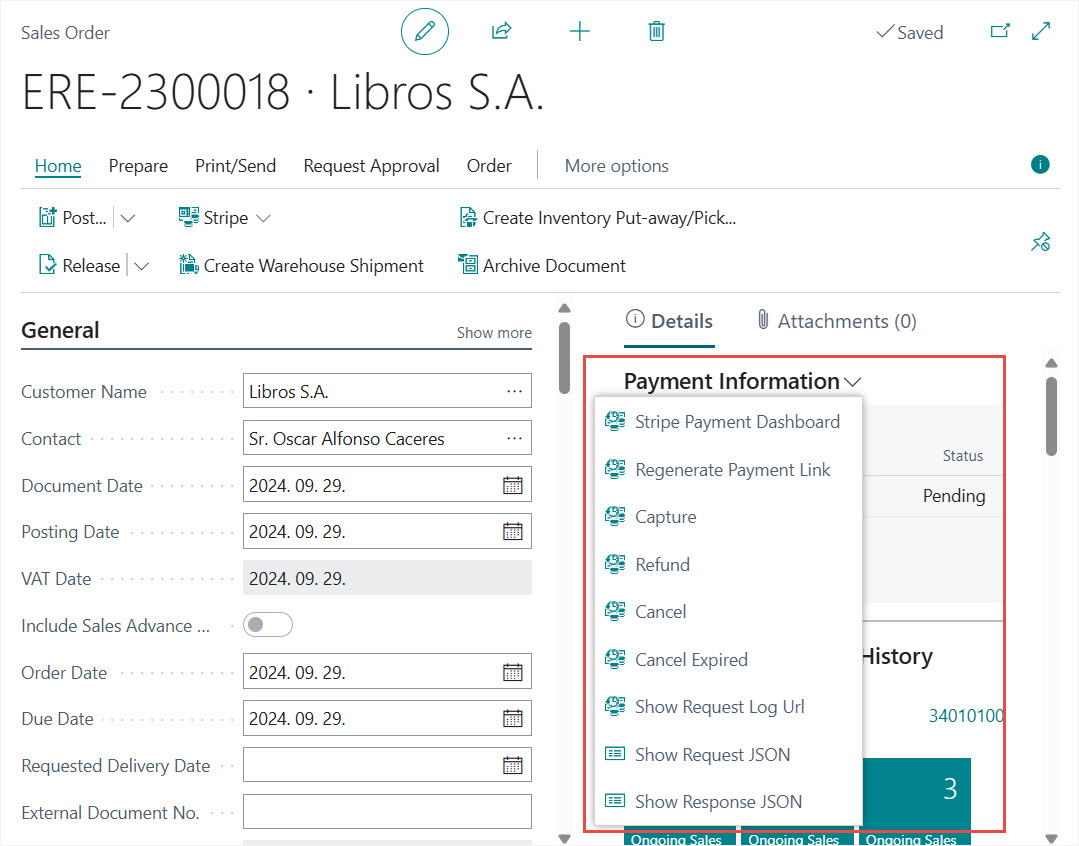
The following actions are available:
- Stripe Payment Dashboard: Opens the payment transactions dashboard in Stripe
- Regenerate Payment Link: Creates a new payment link, the old payment link will be cancelled
- Capture: Updates the payment link status
- Refund: Creates a refund if the payment link is already paid
- Cancel: Cancels the payment link
- Cancel Expired: Cancels the expired payment link (only in Business Central)
- Show Request Log URL: If there's an error in Stripe, you can use it to view the error in the Stripe interface
- Show Request JSON: Shows the details of the request. Available if the Enable Log feature is active in the Stripe Setup
- Show Response JSON: Shows the details of the response. Available if the Enable Log feature is active in the Stripe Setup
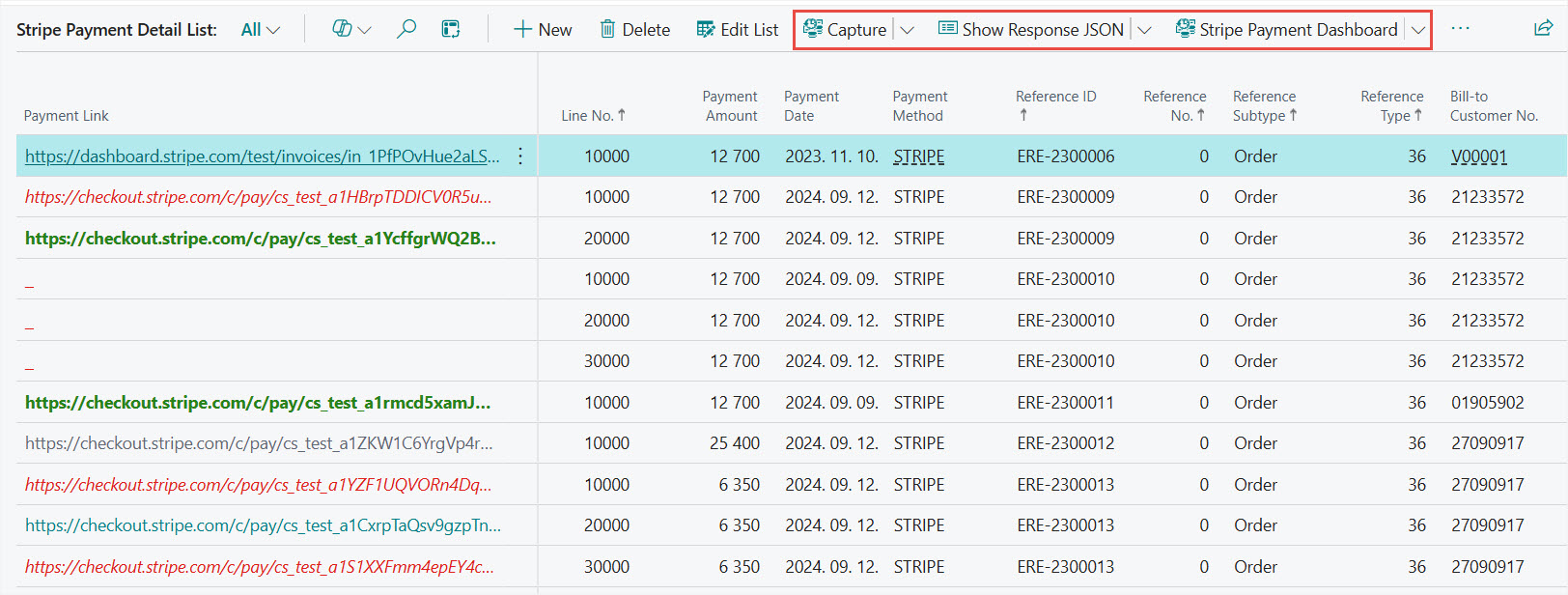
The other place you can manage payment links is the Stripe Payment Detail page. In Business Central, choose the Search icon 🔎 in the top-right corner, enter Stripe Payment Detail List, and then choose the related link.
The Stripe Payment Details List contains all documents where Stripe payment is used. Here you have the same actions (described above) for managing Stripe Payment Links.
Resending Payment Links automatically
Stripe Payment Links can expire. TETRA Stripe Connector automatically sends updated Payment Links to the customer until the status changes to Paid or Cancalled.
We are proud to work with them


 2089 Telki, Öreghegyi út 31/A Hungary
 +36 30 502 0648