
TETRA Stripe Connector comes with built in Data Exchange Definitions and Bank Export/Import Setup for supporting the usage of standard Dynamics 365 Business Central payment reconciliation process.
For adding the must have definitions choose the Search icon 🔎 in the top-right corner, enter Stripe Setup, and then choose the related link.
On the Stripe Setup page use the Insert Data Exchange Definition action.

Data Exchange Definitions and Bank Export/Import Setup is available for handling the gross amounts and fees related to Stripe Payments.
Set up Bank Accounts for payment reconciliation
For automatic reconciliation of gross invoice amounts and Stripe fees you should define two separate Bank Accounts.
In Business Central, choose the Search icon 🔎 in the top-right corner, enter Bank Accounts, and then choose the related link.
Bank Account setup for gross amounts:
Select STRIPE GROSS for the Bank Statement Import Format and turn on the Stripe Bank toggle on the Bank Account Card.

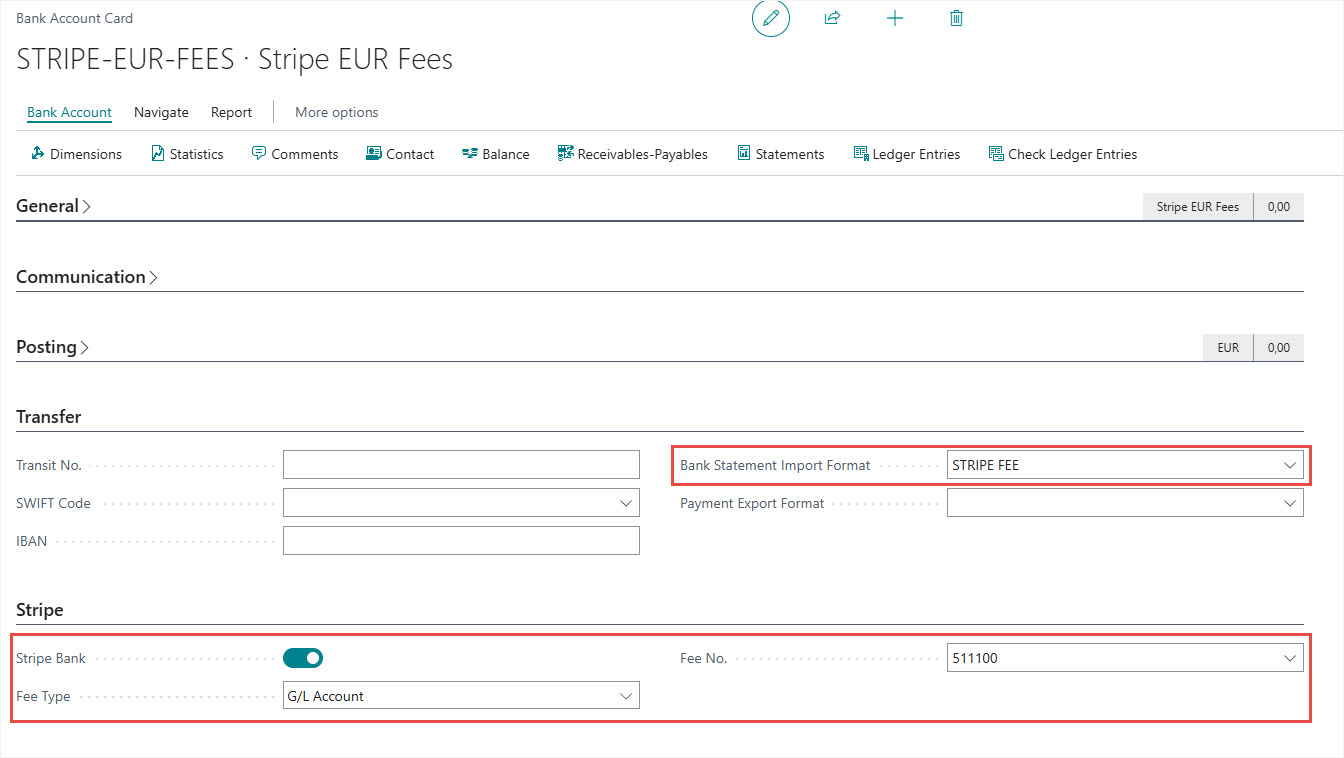
Bank Account setup for Stripe fees:
Select STRIPE FEE for the Bank Statement Import Format, turn on the Stripe Bank toggle on the Bank Account Card and set the Fee Type and the related Fee No according your accounting needs.
We are proud to work with them


 2089 Telki, Öreghegyi út 31/A Hungary
 +36 30 502 0648